
This is an old revision of the document!
Table of Contents
Login On Connect (LOC)
General
 The Login-on-Connect (LOC) feature allows you to pre-login while connecting to AfterNET. Using Login-on-Connect bypasses you from RBL scans and hides your hostname before anyone can see your real IP address. We recommend everyone give it a try.
To use Login-on-Connect, you must first have an AfterNET Account. Use the “User Menu” on the left to create one if you don't already have one.
Login-on-connect uses the “server password” feature built into most IRC clients. All you do is put your specially formatted login information into the server password box like this:
/username/password (slash, your username, slash, your password)
for example, my username is Rubin, and if my pasword was zanzabar I would put the following into my password box:
/rubin/zanzabar
When you connect to AfterNET using the new password, you should see a message like the following:
*** Attempting service login to authserv
*** AUTHENTICATION SUCCESSFUL as rubin
Detailed instructions for mIRC users:
- Click View:Options from the mIRC menu, and select the “servers” option from the left box. You will see the following:
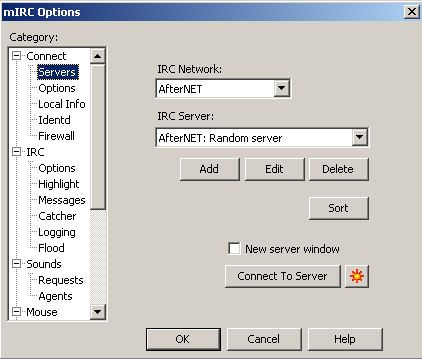
- Select AfterNET from IRC Network, and click the “Edit” button. You will then see this:
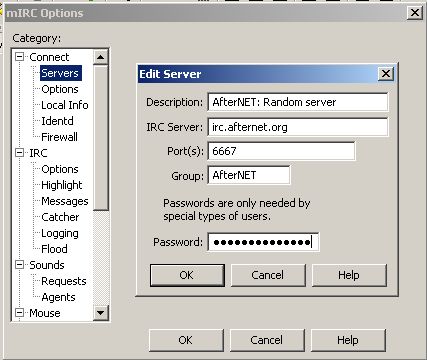


In the password box enter “/username/password” (without quotes).
Note: Replace username and password with your real AuthServ username and password. Click “OK” to save the changes. Click “Connect To Server” and look for the authentication successful message.
Troubleshooting
- Make sure you can login the normal way to AuthServ: /msg authserv auth username password
- If you get a message about /QUOTE PASS that means your username, or password is wrong, or maybe AuthServ is down?
- Some people reported having to close mIRC and re-open it before LOC started working.
- You must have a *@* host (default) set in AuthServ since LOC does not know your hostname.
- The 'server group' must be the string “AfterNET” exactly. mIRC wont send the password if the name doesn't match what the server announces itself as.
- Try typing the password string into notepad so you can see it. Then paste it into the password box.